
YOUR IDEAS, IN THREE DIMENSIONS
AI 3D Model Generator
Turn an image or a few words into a 3D model. Rotate it, make it yours, download it.
Start with an image
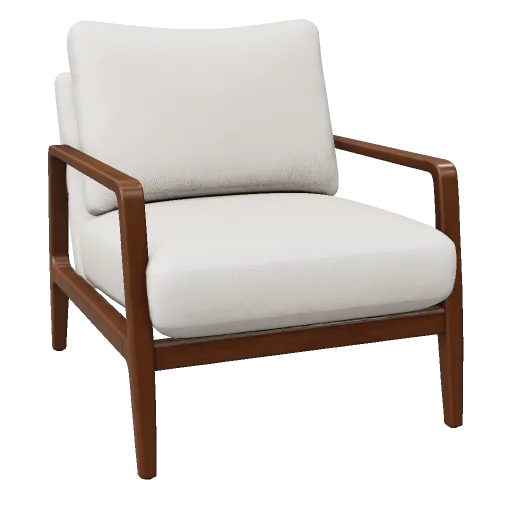
Generation delivers GLB. STL conversion and OBJ viewing are separate tools; other software may require format conversion or additional preparation.
REAL GENERATIONS
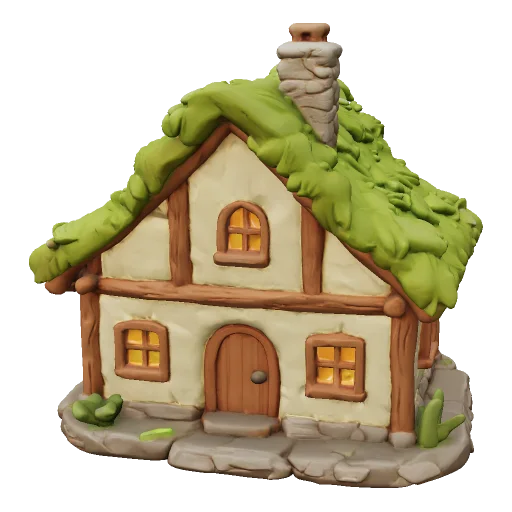
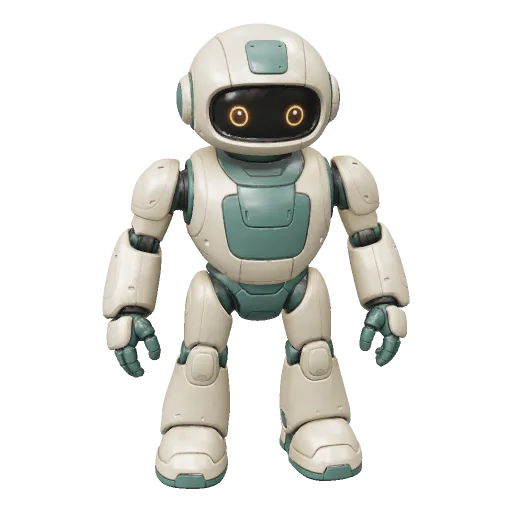
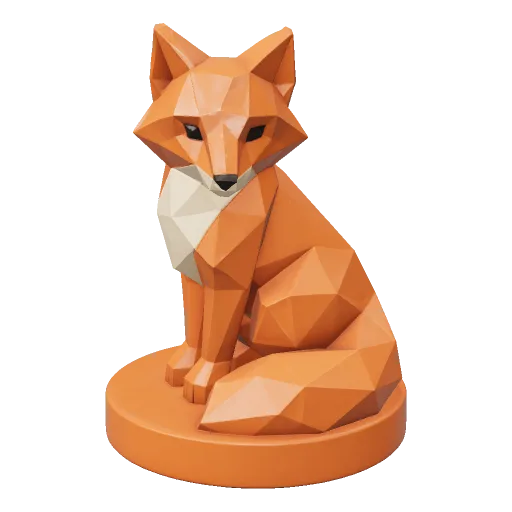
Made in Fomrix
Real inputs. Real models. Open any result to explore it in 3D.
Choose your level of detail
Match geometry and textures to the model you want to make.
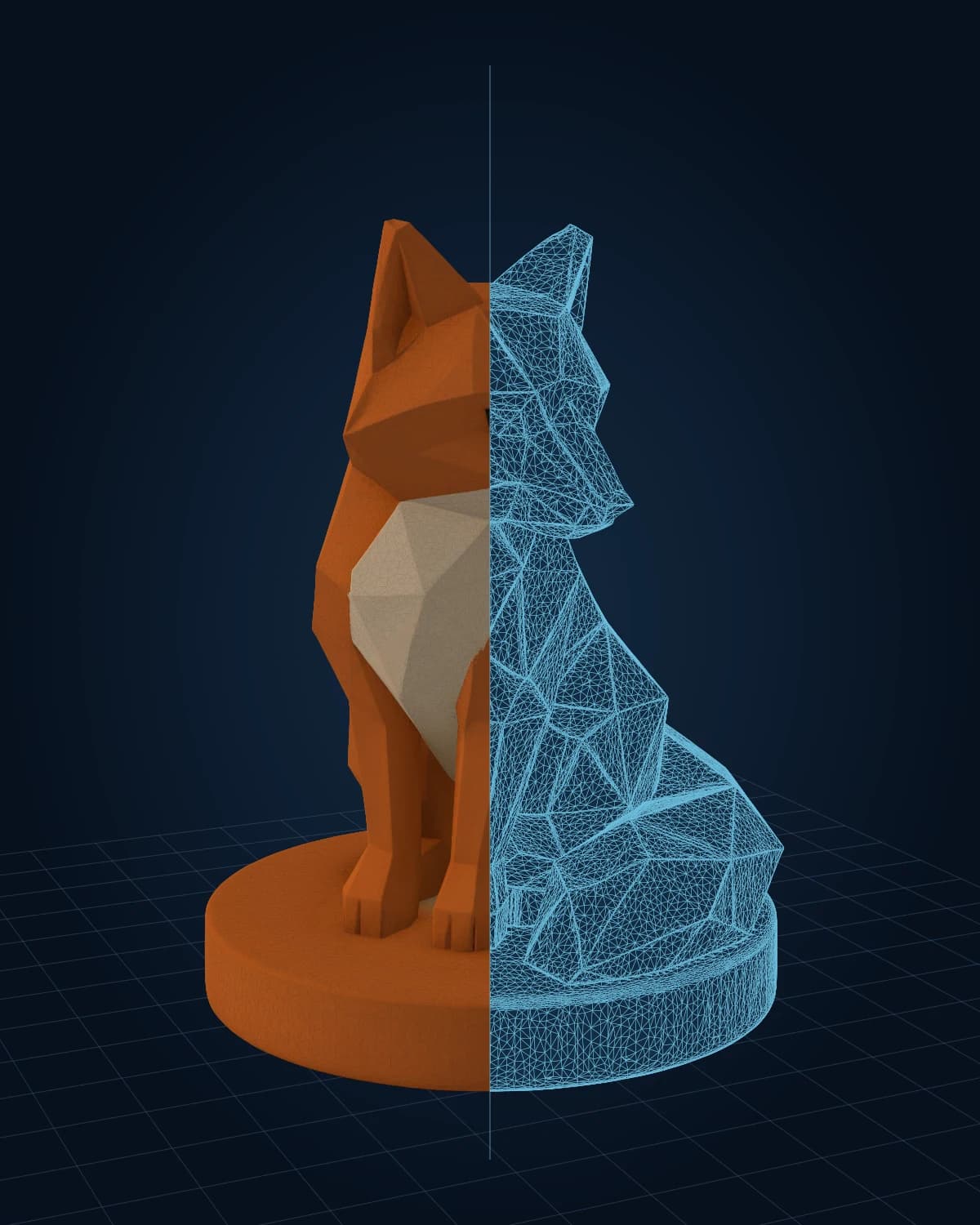
Take the shape toward a print
Generate a model, convert its geometry to STL, then prepare it in your slicer.
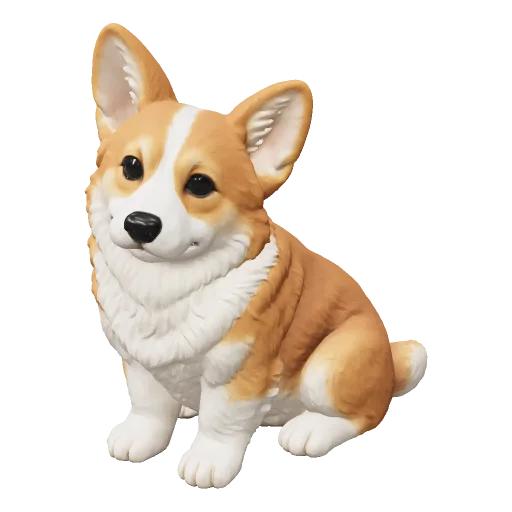
REAL FOMRIX CORGI
From image to something tangible
Inspect the inferred sides, set the size and check thickness and supports. STL exports the shape without textures.
Explore the print workflowWhat will you create?
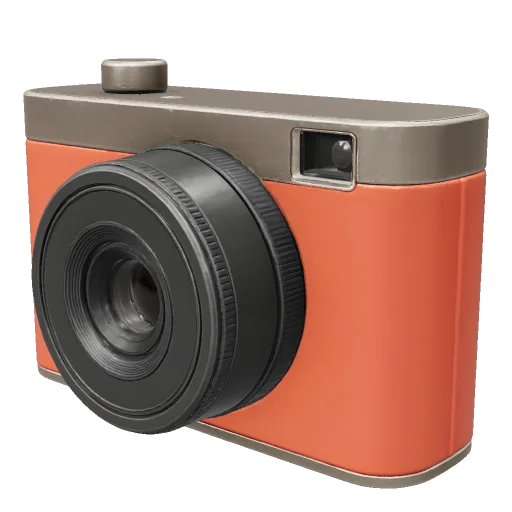
Choose the Result You Need
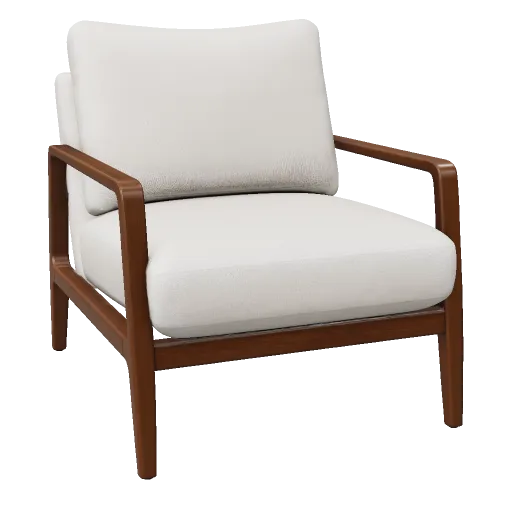
Create a 3D Starting Asset
Generate a textured starting asset from one reference image. Inspect the actual geometry and materials before downloading the GLB for your next project.
- GLB output with optional PBR materials
- Real-time 360° orbit & lighting inspection
- Review geometry before importing into another app
Create. Inspect. Keep going.
Goal-based workflows
Choose a workflow for printing, web or creative exploration.
Read the 3D-printing path3D Character maker
Create a character mesh from your artwork.
Create a 3D characterPractical 3D utilities
View, convert and check your model in the browser.
Convert GLB geometry to STLAssets stay organized
Revisit your models and downloads in one library.
Open My modelsAlready Have a 3D File?
STL Viewer
Open an STL file in your browser and inspect the mesh before printing.
Open STL Viewer .GLB02GLB Viewer
Preview GLB models with materials and textures in an interactive web viewer.
Open GLB Viewer .OBJ03OBJ Viewer
Open OBJ geometry online and inspect the model without desktop software.
Open OBJ Viewer GLB → STL04GLB to STL
Convert a GLB model into an STL file for workflows that need mesh-only output.
Convert GLB to STL MESH CHECK05STL Repair
Find common mesh problems and repair an STL before sending it to your slicer.
Repair an STLYour questions, answered
Clear answers to common questions about generating, inspecting, repairing, and downloading 3D assets with Fomrix.
Have other questions?
Contact Fomrix support
Need guidance on a specific reference image, custom formats, or print prep? Reach out anytime.
support@fomrix.comCan I try Fomrix for free without a credit card?
Yes. New accounts receive a one-time 20-credit starter bonus during their welcome week, plus 10 free welcome credits on each day they sign in during their first 7 registration days, up to 90 credits. Your first sign-in on registration day gives you 30 credits, enough for one H3.1 Standard image model with standard textures. No card or subscription is required. This is enough for up to 9 models using H3.1 text-to-3D, standard geometry and textures off, at 10 credits per model. You can inspect and download your generated GLB files. Welcome credits are a first-week offer, not a permanent daily allowance.
How do new-user welcome credits work?
Receive 20 starter credits once during your welcome week, then sign in during each of your first 7 registration days to receive 10 credits automatically. Each day is a 24-hour window starting from your registration time. Missed days are not credited later. Each grant expires 7 days after you receive it, and the credits closest to expiry are used first. You can save unexpired grants for a higher-cost generation. See your received credits and expiry dates in Credits & billing.
What do paid plans add to the free welcome offer?
Paid options give you a larger credit allowance and purchased credits that do not expire. One-time packs suit a single project; monthly plans add credits after each monthly payment; annual plans deliver a full year of credits after payment at a lower unit price. Free and paid credits use the same generation models, settings and GLB downloads, subject to having enough credits. Higher tiers give you more iterations and better credit value. Browser viewing, conversion and repair tools do not consume generation credits.
What is an AI 3D model generator or 3D asset generator?
An AI 3D model generator creates 3D geometry from visual references or written descriptions. Fomrix supports both image-to-3D and text-to-3D creation, then helps you inspect, download and prepare the resulting asset.
Can I generate a 3D model from a text prompt?
Yes. Choose Text to 3D in Studio and describe one object, its shape and appearance. H3.1 Standard geometry starts at 10 credits, or 20 credits with standard textures. Review the total before submitting; prompts pass a safety check before generation.
Can I create a 3D model from one image?
Yes. Fomrix currently accepts one reference image. The AI must infer surfaces that are not visible, so choose the clearest angle and review the generated back and sides before using the asset downstream.
Which 3D formats can I use with Fomrix?
Fomrix saves the original as GLB with its available materials and textures. The download menu also exports geometry-only STL for printing and OBJ for editing, at no extra credit cost. FBX requires a separate conversion, for example through Blender.
Which 3D model tools are part of the Fomrix AI 3D workflow?
The public workflow includes image and text generation, interactive GLB, STL and OBJ viewing, GLB-to-STL conversion and STL mesh repair. Choose the tool from the outcome you need instead of forcing every asset through the same path.
Can I use an AI-generated model for 3D printing?
You can use AI generation as the starting mesh for 3D printing. Printable models should still be checked for mesh issues, scale, wall thickness and other manufacturing constraints before printing.
Do I need Blender or other 3D software?
Not for the basic workflow. You can generate and inspect assets directly in the browser. Advanced editing, sculpting or production cleanup may still benefit from dedicated 3D software.
Can I make a 3D model from a photo?
Yes. A clear product photo, object image, drawing or visual reference can be the starting point. One photo cannot show every surface, so the AI estimates hidden areas and you should inspect those areas before export.
Do I need an account, and how many credits does generation use?
You can choose an image before signing in. It is carried into Studio locally; sign in and confirm the settings to upload it and generate. A standard textured H3.1 generation uses 30 credits; other model and quality settings change the cost. Browser viewing, conversion and repair tools do not consume generation credits.
Do the browser 3D tools upload my files?
The current local GLB, STL and OBJ viewing, conversion and repair tools process the file you select inside your browser. They do not upload that selected 3D file to Fomrix. Image-to-3D generation is different: its reference image must be uploaded so the generation service can create the result.
Make your first 3D model
Start with an image or a few words. See what takes shape.