
GAME PROPS
A prop beyond its outline
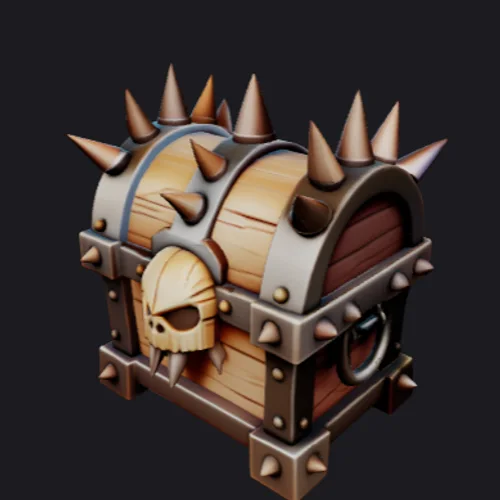
Inspect the lid, metal trim and wooden panels from every side.
YOUR IDEAS, IN ANOTHER DIMENSION
Start with a drawing. Give it shape. Explore every side.
LOOK CLOSERReview settings before generating. No credits used here.
Drag to rotate · Scroll or pinch to zoom
LOOK CLOSER
Compare each reference image with its 3D model. Rotate to inspect the shape, hidden surfaces and mesh details.
Inspect the lid, metal trim and wooden panels from every side.
Explore the mechanical legs, joints and body against the original artwork.
Turn the mushroom scene around to inspect its layered shapes and hidden surfaces.
START WITH WHAT YOU HAVE
Choose the kind of drawing you have. Each gives the model different clues about shape and appearance.
A three-quarter drawing can show a front, a side and the top together. Use it to explore the silhouette of a product or prop.
A readable pose helps distinguish arms, legs and accessories. Simple character sketches work well as a starting point for sculpting.
Color blocks and shading offer more appearance cues. A painted concept can guide a textured model while keeping your visual direction.
A BETTER START
A readable outline gives the model more to work with. A few small adjustments can make your input easier to understand.
Crop away the desk, page borders and unrelated drawings. Keep the whole subject visible.
Lift faint lines with contrast. Keep checking the original so small details do not disappear.
A three-quarter view shows more shape than a flat outline. Hidden surfaces will still be inferred.
WHY FOMRIX
Crop, rotate and adjust contrast in the browser. Look at the exact image you are about to send.
Open the drawing workspaceSwitch between the source and prepared image. Your Studio draft keeps both, so you can revisit your starting point.
See the preparation stepsChoose geometry or texture, then review the generation cost in Studio before starting.
Compare the two finishesRotate the mesh and switch between its surface, clay and wireframe views before taking it into your next tool.
Try the model checklistFROM PAPER TO MESH
CHOOSE YOUR FIRST PASS
Match the generation to what you need to judge. This estimate uses the workspace’s standard H3.1 image settings.
Example model · display modesSurface view
MADE FOR THE FIRST DRAFT
Review a product's overall volume from a drawing. Exact dimensions and fitted parts still belong in a CAD workflow.
Create a starting shape for a scene. Inspect topology, materials and scale before production use.
Explore a character or ornament in the round. Check thin parts and mesh issues before any printing workflow.
LOOK BEYOND THE FRONT
Use this reference model to practise inspecting a mesh. Tick off each view as you explore; this is your review, not an automatic repair test.
0 of 4 checks reviewed
MAKE THE NEXT ATTEMPT COUNT
If a result misses your idea, start with the part of the drawing that is ambiguous.
| What you notice | What to change in the drawing | Next move |
|---|---|---|
| The object looks too flat | Draw a visible side or top plane. Add clear thickness instead of relying on an outline alone. | Try a three-quarter view |
| Arms or parts merge together | Leave a visible gap between overlapping pieces. Remove nearby sketches that compete with the main subject. | Simplify the silhouette |
| Tiny details disappear | Let the subject fill more of the frame. Make the defining details larger and remove secondary clutter. | Crop closer to the subject |
| Shading becomes a dark surface | Reduce heavy hatching or photographed shadows. Keep the important contour lines readable. | Check shape in clay view |
GLB / STL / OBJ
The right format depends on what you want to do with it.
THE MODEL IS A STARTING POINT
Choose your next task and follow the steps. Keep the original GLB before making a converted copy.
Use a textured model to discuss shape, proportion and appearance with a teammate or client.
Check front, side and back against the drawing. Record what needs another pass.
Use the review checklistKeep your drawing and model together in Studio so you can return to the concept.
Open My creationsUse the generated mesh as a starting point in a 3D editor. Refine topology, proportions and details for your project.
Convert to OBJ when you need a static mesh. This conversion does not preserve materials or textures.
Convert GLB to OBJOpen the OBJ to confirm its shape before continuing in your editor.
Open OBJ viewerSet a physical size and check the geometry before slicing. Conversion alone does not repair a mesh or guarantee a successful print.
Make an STL copy of the GLB and check the intended dimensions.
Convert GLB to STLInspect mesh issues, repair in suitable software, then recheck the file.
Check the STLInspect the exported shape, then check supports, thin walls and layers in your slicer.
Open STL viewerYes. Photograph or scan one object in even light and save it as JPG, PNG or WebP. Keep the outline clear and the whole object visible.
No. AI estimates depth and surfaces the drawing does not show. Small details can change. Inspect the full result before continuing your work.
This workflow uses the prepared image. To generate from a written description instead, use Text to 3D. It does not combine an image and a prompt.
Viewing examples and preparing an image are free. Generation uses Fomrix credits. Eligible new users receive welcome credits; Studio shows the cost before you generate.
You can export STL geometry. Check its size, thin parts, open edges and sliced layers before printing. An STL file is not a guarantee of printability.
The output is a polygon mesh. It is not a dimensioned CAD design, and it does not include automatic rigging or animation.
Have an idea, but no drawing? Try Text to 3D