
01
FOR GAME CREATORS
Build the world around your story
Explore props and environment ideas before detailed modeling.
Bring the GLB into your scene to review shape and scale.
Prepare topology and test performance in your game engine.
FROM A FEW WORDS TO A NEW WORLD
Turn a few words into a 3D prop, product concept or sculpture. Preview every angle and download your model.
30 free credits on day one · No card required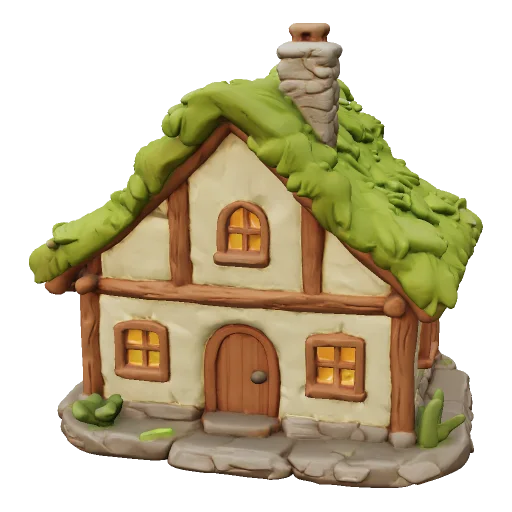
Three ideas, three real results. Find your starting point and make the prompt your own.
FOR GAME CREATORS
Explore props and environment ideas before detailed modeling.
Bring the GLB into your scene to review shape and scale.
Prepare topology and test performance in your game engine.
FOR DESIGNERS
Explore sculptural shapes and decor without starting from a blank mesh.
Rotate the concept and refine its proportions in your 3D editor.
Use CAD when you need measured manufacturing dimensions.
FOR 3D PRINTING HOBBYISTS
Turn a figurine idea into a starting mesh for print preparation.
Convert its geometry to STL and continue in your slicer.
Check scale, thickness, supports and mesh integrity before printing.
Select a part of this sample to see its purpose. Write the shape before you describe the finish.
Illustrative prompt · not a generated result
Choose one asset. 'A vase on a table in a room' introduces other objects you may not want in the mesh.
Apply this structure to a real templateA prompt guides interpretation. It cannot guarantee dimensions, watertightness or a working hollow vessel.This 20-credit text job created a textured cottage with 93,372 faces. The prompt is the real input; no concept illustration was fed into this generation.
A new generation is a new interpretation. Change one thing so the comparison teaches you something.
Name one object, its proportions and two distinguishing features. Keep a description of the scene out of an isolated asset brief.
A geometry-only text attempt starts at 10 credits. Standard textured text generation starts at 20; confirm the final total in Studio.
Compare the result with the brief. Identify one change: a wider opening, shorter chimney or clearer pose, rather than just 'make it better'.
Keep the parts of the prompt that worked. Save the next result as another version; editing a prompt does not modify an existing model.
Prompt iteration guide
For the stage when you know the idea but do not yet have reference artwork.
Describe a prop, sculpture or creature without first commissioning a concept image. Test whether the volume communicates your idea.
Break down a sample briefThe cottage, vase and owl templates include the words that generated them. Edit a copy and carry it into Studio as your own draft.
Adapt a real promptCompare the silhouette with geometry-only generation, then choose a textured attempt when you want to evaluate materials and color.
Compare text-mode creditsText generation is useful when an idea exists before a visual reference.
Environment props
Describe a single house, chest or decorative object. A generated prop is a starting point for composition and style review, with optimization still to do.
Sculptural products
The geometry-only vase was generated for 10 credits. Its spiral flutes are a shape study; the result is not a tested vessel or engineering design.
Creature concepts
Describe a full-body pose and recognizable features. The owl's static surface can help with design review before rigging or print preparation.
Choose the next task according to what the experiment taught you.
Download the GLB, import it into Blender and place it in a scene. Check materials under your scene's lighting.
Use the original GLB or geometry-only OBJ as a starting surface. Build UVs and materials separately if you choose OBJ.
Words such as 'printable' or 'watertight' do not certify the result. Set dimensions and check the mesh before slicing.
These are text-mode estimates. Trying the editors and saving a local draft do not start a generation.
Estimated generation cost
Estimate for one generation. Detailed textures and other Studio settings can change the total. P1 is a separate low-poly model, not a cheaper quality switch.
Choose settings in StudioSee credit plansNew accounts: 20 welcome credits once, plus 10 on each login day during the first 7 registration days. Day one totals 30; every grant expires after 7 days. Missed days are not backfilled.
Paid plans add purchased credits for continued generation. Purchased credits do not expire. Local viewers and converters remain free.
A concrete correction is more useful than adding more adjectives.
Reduce the brief to one complete object and remove the background scene. Specify the features of that object before decorations.
Edit a focused exampleName its position and proportion. Change one feature and compare the new version, instead of rewriting every detail at once.
Try a revised promptA blocked prompt does not start generation. Studio shows job errors and next actions. A failed generation releases reserved credits; check a pending job before submitting another.
Check the job in StudioCredits, prompt tips and what to expect from your results.
Contact Fomrix support
Need guidance on a specific reference image, custom formats, or print prep? Reach out anytime.
support@fomrix.com30 free credits on day one · No card required. Sign in on your registration day to receive 30 credits. Receive 20 once during your welcome week and 10 on each of your first 7 registration days. Each grant expires 7 days after receipt. Missed days are not backfilled. Paid credits do not expire.
H3.1 Standard text generation uses 10 credits for geometry only, or 20 with standard textures. High detail, detailed textures and P1 cost more. Studio shows the total before you submit.
No. These models were generated from the original text prompts shown beside them. The concept sketches were illustrated afterwards to visualize each idea. Open a model to inspect the actual generated geometry and its settings. Reusing its prompt produces a new result, not an identical copy.
Describe one object, then its proportions, pose and defining details. Include colors and materials when textures are on. Avoid describing an entire scene. Change one feature per attempt so you can compare what worked.
Prepare it for your intended use first. Printing needs scale, wall thickness and mesh checks; characters may need retopology and rigging. GLB-to-STL conversion exports geometry only and does not preserve textures or animation.
Use text to explore an idea without a reference. Use image to 3D when existing artwork or a specific silhouette matters. Both infer unseen surfaces. For exact mechanical dimensions and fitted parts, use measured CAD or scanning.
Studio explains the error and the next action. A blocked prompt does not start generation. A failed generation releases reserved credits; welcome credits retain their original expiry. If a result is still being confirmed, check its status before starting another attempt.
Start with one object and see where it takes you.