
01
Shape from a visible reference
The silhouette, perspective and visible features guide a complete surface. Keep one object readable and fully inside the frame.
ONE IMAGE, EVERY ANGLE
Turn a photo or illustration into a 3D model. Explore every angle and download the textured GLB.
30 free credits on day one · No card required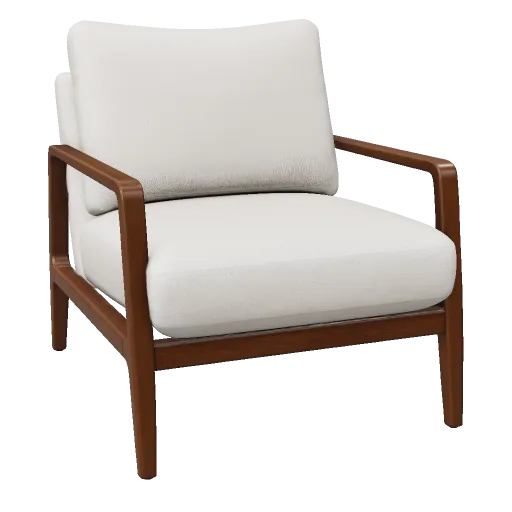
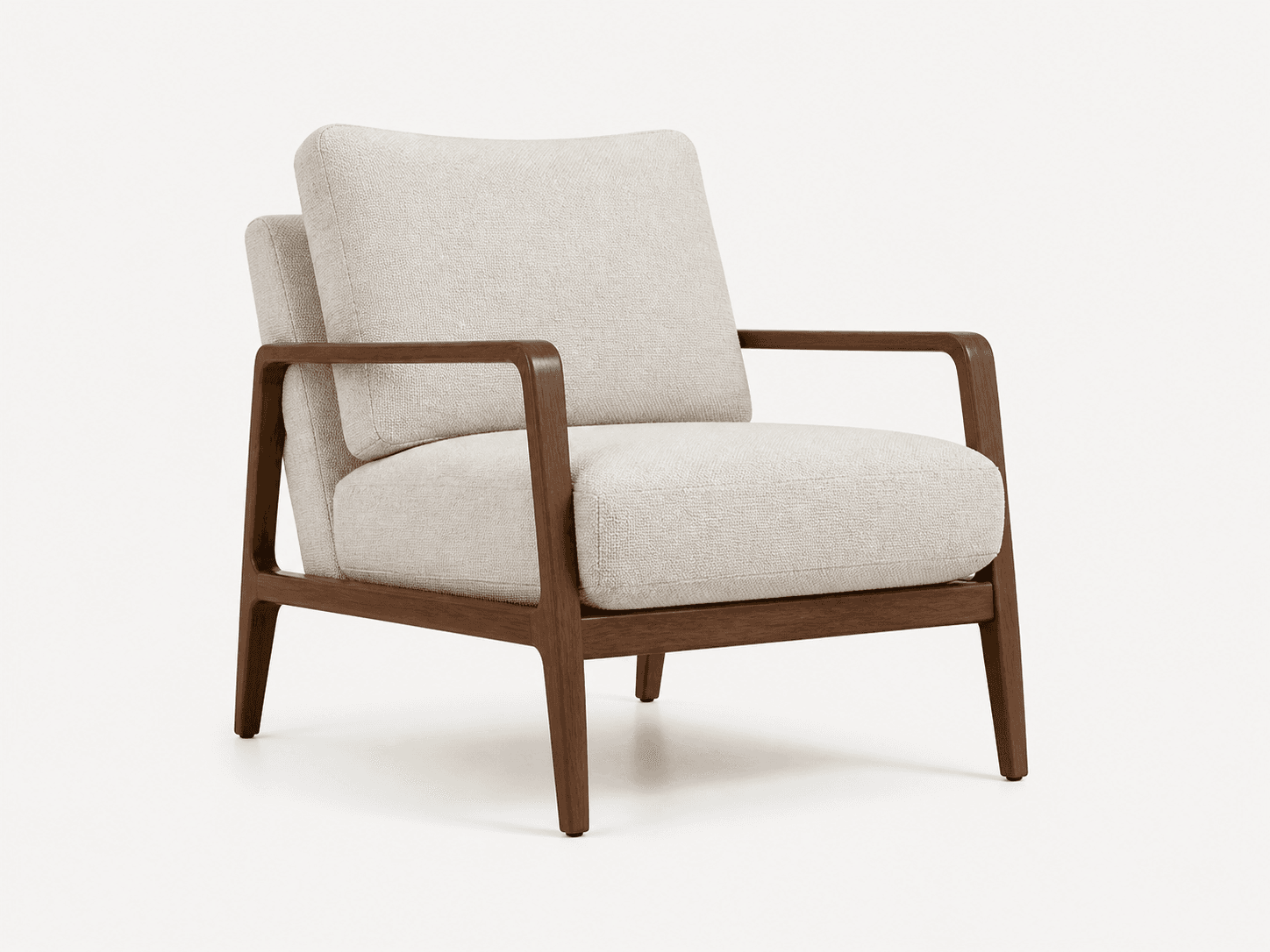
This published image-to-3D job used 30 credits. Compare the original reference with the actual cushions, frame and inferred underside.
AI reconstruction creates a new asset from visual cues. It is more than extruding the pixels, and it is not a measured 3D scan.
The silhouette, perspective and visible features guide a complete surface. Keep one object readable and fully inside the frame.
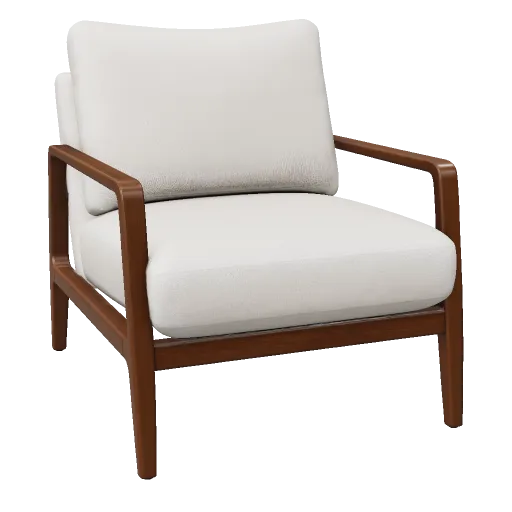
Depth, the back and the underside are predictions. Compare those areas before the model represents a real product or becomes a print.
Textures provide color and material cues. If you only need a form study, generate geometry first; add appearance when you have a clearer direction.
Use one JPG, PNG or WebP up to 20 MB. Review these three parts of the reference before uploading.
REAL GENERATIONS
Open the original reference and its actual generated model.
Keep the reference beside the result throughout the process.
Drop one JPG, PNG or WebP up to 20 MB into Studio. The local preview lets you check framing before the image is uploaded.
Open the chair reference in StudioIllustrated image workflow · no generation submittedChoose based on the evidence and accuracy you need, not just the file extension.
| Method | A useful choice when | What you still need |
|---|---|---|
| AI image to 3D | One image or concept needs a fast starting asset | Review inferred surfaces and refine the result |
| Photogrammetry / 3D scan | Measured real-world surfaces matter | Enough overlapping captures, calibration and cleanup |
| Manual modeling / CAD | Exact dimensions or intentional topology matter | Measured specifications and modeling work |
Choose a use to see the kind of asset and follow-up work it needs.
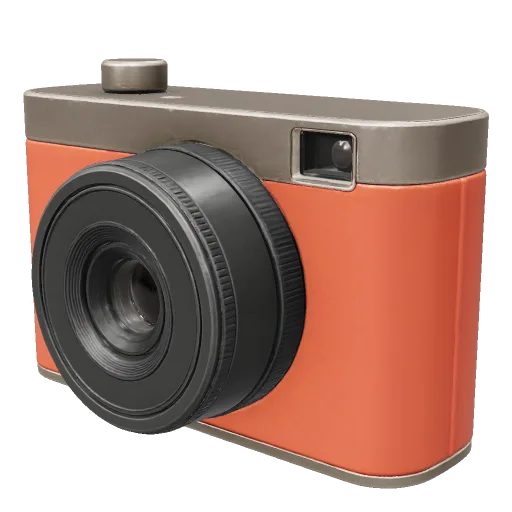
A camera concept shows how one angled reference communicates the lens, top controls and material boundaries. It is a visualization concept, not a dimensionally verified product scan.
Evaluate the result visually before investing in refinement.
Open the chair photo at full size, then examine the real generated mesh next to it. The comparison stays tied to one documented job.
Review the chairSurface, clay and wireframe views reveal whether a detail comes from texture or geometry, so you can choose the right edit.
Switch inspection viewsThe original GLB preserves generated materials for a Blender handoff. Archive alternative results in your library while refining the chosen version.
Plan the handoffCompare image-mode settings before uploading your reference. The controls use Studio's pricing rules.
Estimated generation cost
Estimate for one generation. Detailed textures and other Studio settings can change the total. P1 is a separate low-poly model, not a cheaper quality switch.
Choose settings in StudioSee credit plansNew accounts: 20 welcome credits once, plus 10 on each login day during the first 7 registration days. Day one totals 30; every grant expires after 7 days. Missed days are not backfilled.
Paid plans add purchased credits for continued generation. Purchased credits do not expire. Local viewers and converters remain free.
Keep the original, then prepare a copy for the intended destination.
Import the GLB using glTF 2.0. Check hidden surfaces, materials and scale before saving your editing project.
A generated original is not a website performance budget. Reduce geometry and texture weight in your production tools, then test on a phone.
A photo supplies no physical dimensions. Geometry needs a target size and structural checks before it goes to a slicer.
Change the input or workflow according to the issue you can actually see.
It was inferred from one view. Choose a reference exposing more depth, or use a measured multi-view workflow when hidden structure must match.
Review your reference in StudioUse clay and wireframe to distinguish surface shading from mesh features. Detail painted in the texture will not become printable relief.
Compare the viewing modesDownload the original for editing, then create an optimized web version. Review polygon and texture budgets on an actual phone, with a poster while it loads.
Inspect GLB contentsClear answers to common questions about generating, inspecting, repairing, and downloading 3D assets with Fomrix.
Contact Fomrix support
Need guidance on a specific reference image, custom formats, or print prep? Reach out anytime.
support@fomrix.comSign in, choose a photo with a clear main subject and start a generation in the workbench. Fomrix creates a GLB asset you can rotate, inspect and download.
AI image-to-3D predicts a new asset from visual cues in one reference. A scan records measured surface data, so scanning is the better route when physical accuracy matters.
It can create a useful complete asset from one reference, but the image only shows part of the object. AI estimates hidden backs, undersides and depth, so review those areas before using the model downstream.
The current generator accepts one JPG, PNG or WebP image up to 20 MB. Use an image with one clear subject, visible boundaries and enough space around the object.
The saved original is GLB. Choose GLB for the original materials and textures, STL for a sized print mesh, or OBJ for static geometry from the download menu. STL and OBJ exports do not include textures.
You can explore Studio, select a local reference and try the settings without an account. Sign in only when you start generation; that is when the reference is uploaded and credits are used. Viewing examples, exporting and basic repair do not use generation credits.
Isolated objects, toys, furniture, shoes, props and character references usually work better than crowded scenes. Clear silhouettes and visible object boundaries help.
Yes. If your end goal is 3D printing, use the dedicated Image to STL workflow or convert the generated GLB to STL, then check scale, wall thickness and mesh integrity before slicing.
Yes. Current Blender versions can import GLB files. Depending on the reference and your final use, you may still want to refine topology, materials, scale or individual parts after import.
No. A photo does not provide reliable real-world scale. Set and verify the final dimensions in your 3D or print-preparation tool before manufacturing or fitting the asset to another object.
GLB is designed for efficient 3D delivery on the web. You can preview GLB assets in Fomrix and use a web-optimized workflow when the final model is intended for interactive product or AR experiences.
Start with one clear reference. Your first result is a model you can explore.