Explore eight texture treatments across two models. Choose a result to inspect it from every angle.
8 texture variations
CHARACTER LOOK DEVELOPMENT
Keep the character. Change the story.
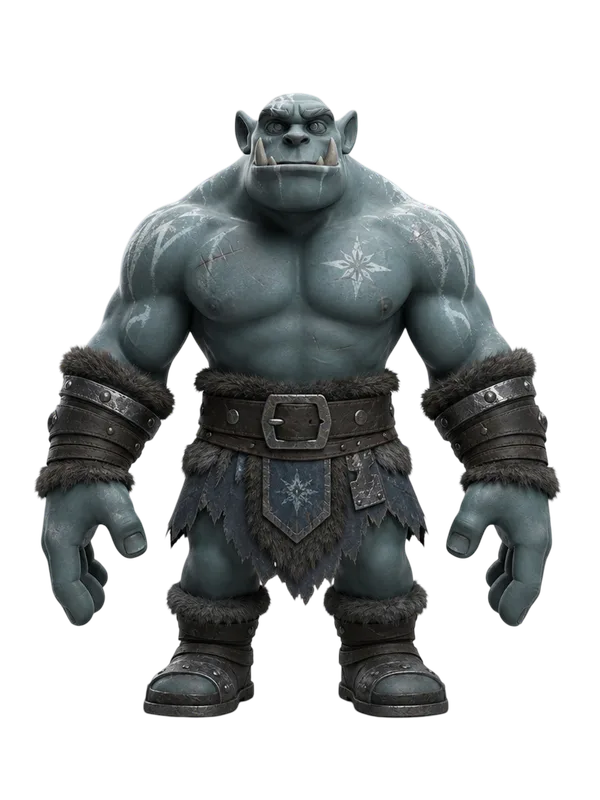
Mossy skin and worn leather suggest a forest guardian. Cool blue tones shift the same silhouette into an icy world. Compare how color and surface detail change the mood.
Skin and accessories
Contrasting color palettes
Readable small details
GAME PROP VARIATIONS
A new faction. The same familiar shape.
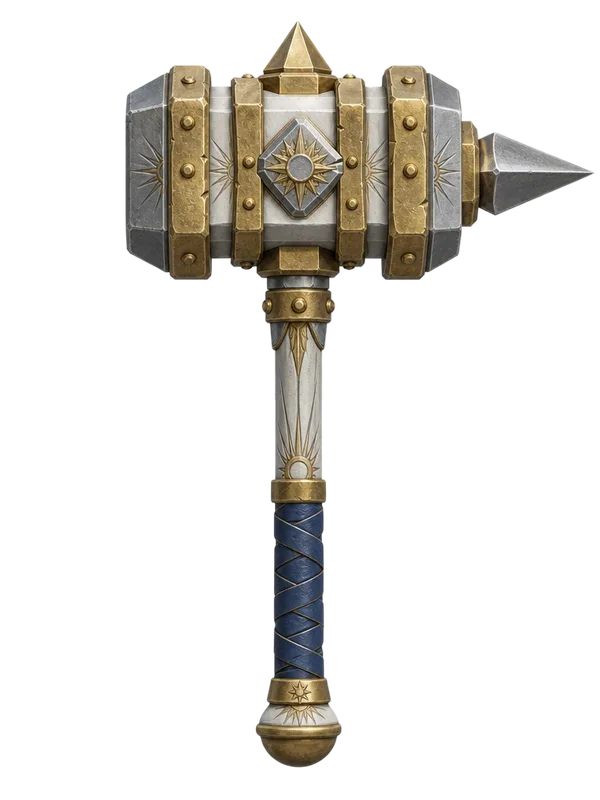
White enamel and gold, weathered iron or glowing molten steel: explore a visual direction for a prop before building the rest of the scene.
Metal and painted surfaces
Edges and engraving
Handle and grip detail
LOOK CLOSER
A world of surfaces to explore.
From engraved metals to organic surfaces. Open a reference image to inspect the detail and take its material direction into your brief.
FROM MODEL TO MATERIAL
A straightforward texture workflow.
.GLB
01
Start with a model
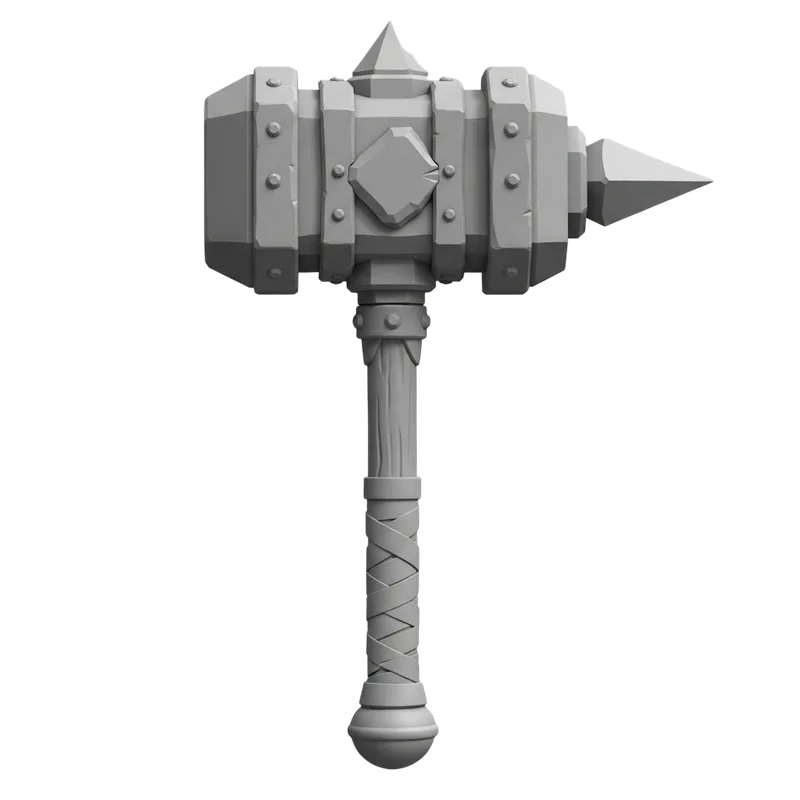
Open a static GLB. Rotate it first to check its shape, separate pieces and missing faces.
White enamel and polished gold bands, engraved sun motifs and a dark blue leather grip.
02
Describe its surface
Choose the material, palette and finish. Describe the surface treatment instead of asking for a different shape.
03
Inspect every angle
Compare with the original. Check the back, seams and small details before using a textured GLB in your next project.
A LITTLE DIRECTION GOES A LONG WAY
Make your material prompt specific.
Build a short brief, then edit it to match your model. These choices describe your intent; they do not change the example automatically.
Your texture brief
Metal surface with a Matte finish. deep blue, subtle wear around the edges. Keep the existing silhouette and small features.
MORE USE FROM AN EXISTING ASSET
Explore the look before committing to it.
Compare creative directions
Review several surface ideas against the same silhouette, so the material is what you are judging.
Write a clearer art brief
Use a visual example and a specific prompt to explain the palette, finish and wear you want.
Keep a useful starting point
Keep your source GLB intact. Treat each new texture as a version to inspect, not a replacement for the original.
LOOK BEYOND THE FRONT VIEW
Three checks before you use a texture.
Character
Look at the back, too.
Rotate under the arms, behind the grip and around hidden faces. Check for seams, stretched color and inconsistent detail.
Check narrow gaps and undersides
Compare both sides of the model
Inspect at the size you will actually use
Questions about AI model texturing
Is texturing the same as Text to 3D?
Text to 3D creates a shape from a description. Texturing starts with a model and explores a new surface appearance. It is useful when you already have the shape you want.
Can I preview my own model here?
Yes. Choose a static GLB with embedded resources, up to 30 MB. The local preview does not upload the file or spend credits. Animated and skinned files are outside this workspace’s current scope.
Does changing the prompt generate a new result?
No. Editing a prompt or exploring an example does not spend credits. Upload your own GLB, choose Standard or Detailed, then select Generate texture. The task reserves the displayed credits and saves the result as a new GLB.
Which details should a texture prompt include?
Name the material, color and finish, then describe details such as worn edges or a leather grip. Avoid instructions to add parts or change the silhouette; those belong to a modeling workflow.
Will STL preserve the texture?
No. STL stores geometry, without the model’s color or texture maps. Keep the GLB for visual work; use STL only when you need geometry for a separate workflow.
Does texturing fix a damaged mesh?
No. Texturing is a surface workflow. It does not repair holes, add wall thickness or make a model ready to print. Inspect geometry separately before printing or manufacturing.
Does this create seamless texture images?
This page is about applying a look to a 3D model. A standalone tileable image is a different output and is not part of this workflow.