
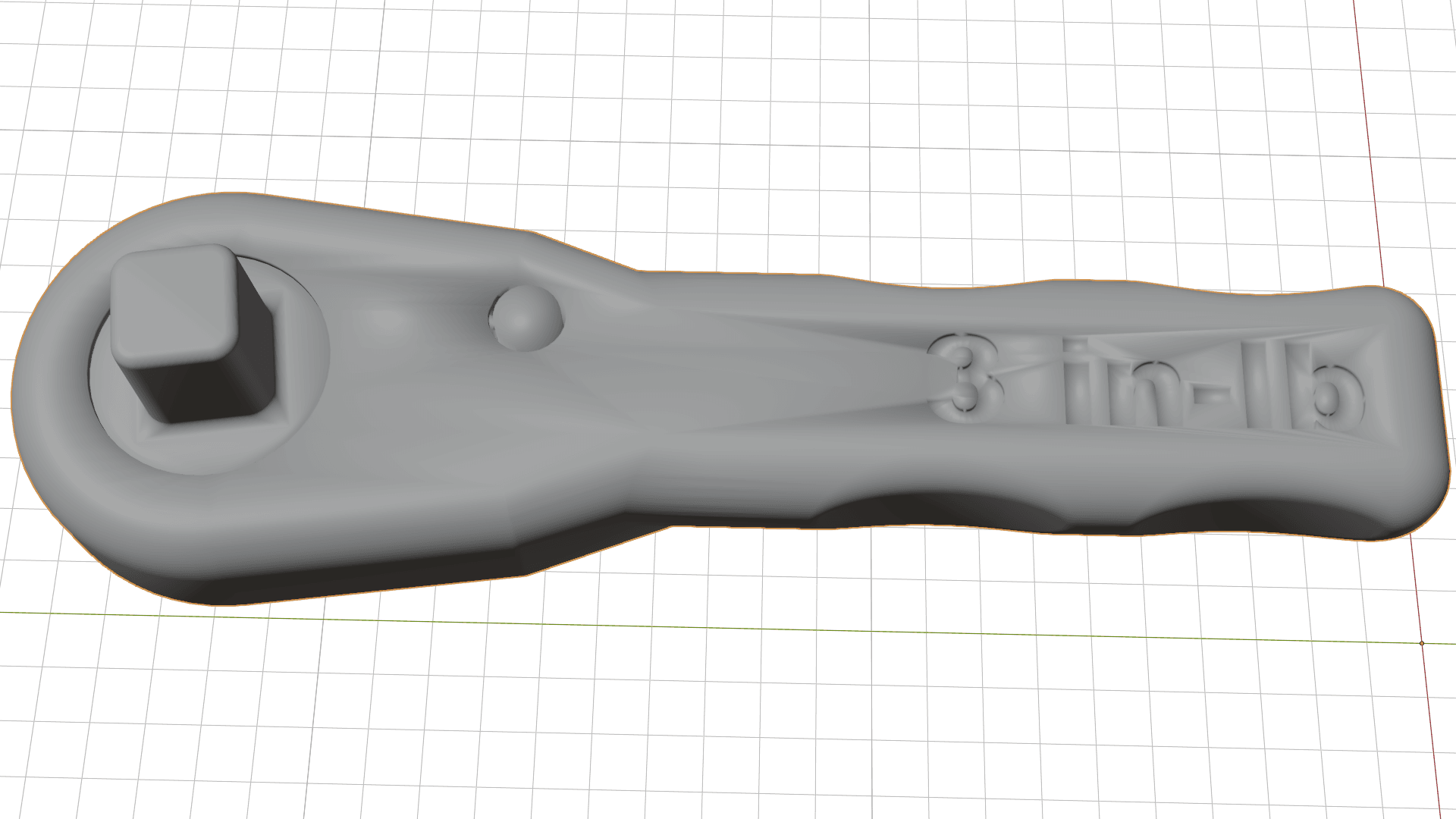
Dimensions
Read the model-space bounding size before choosing print scale.
Open and inspect STL files directly in your browser. Rotate the mesh, review dimensions and continue to repair or print-preparation tools when needed.
Drop a STL file here or choose one from your device.
Your STL stays on this device while you inspect it.
STL VIEWER INSPECTION
Use a real NASA space-wrench mesh to review orientation, density and scale cues in the browser before opening a print-preparation tool.
Read the model-space bounding size before choosing print scale.
Inspect silhouette and surface density without material distractions.
Continue to mesh repair when geometry needs a pre-slicer check.
STL stores coordinates but not a dependable real-world unit label. Choose how the source was authored, then set the longest target dimension.
Clear answers to common questions about generating, inspecting, repairing, and downloading 3D assets with Fomrix.
Contact Fomrix support
Need guidance on a specific reference image, custom formats, or print prep? Reach out anytime.
support@fomrix.comYes. The Fomrix STL viewer is designed to open supported files directly in a modern browser so you can inspect the model without launching a desktop 3D application.
Yes. Use mouse or touch controls to orbit around the model, zoom in and out, and reset the camera when needed.
No. Viewing a file does not modify the original asset. Conversion or repair is handled as a separate action.
The interface should work on modern mobile browsers, although very large 3D files can be slower to load on devices with limited memory.
Confirm that the file extension matches the actual format, try a smaller model, and check whether external textures or related files are required. If the geometry itself is damaged, use the relevant repair workflow where available.
No. It helps you inspect STL dimensions and triangle geometry, but wall thickness, orientation, supports and the final toolpath still need review in your slicer.
STL stores numeric coordinates without a dependable unit label. Confirm whether the source was authored in millimeters, centimeters or inches before setting the final print dimensions.
Open the model locally, rotate and zoom the geometry, then continue with the preparation tool that matches your workflow.